
How to Add Music and Captions to a Zombie Video
Prepare your AI zombie video for TikTok, Reels or Shorts with vertical framing, an optional soundtrack, readable captions and AI labels.
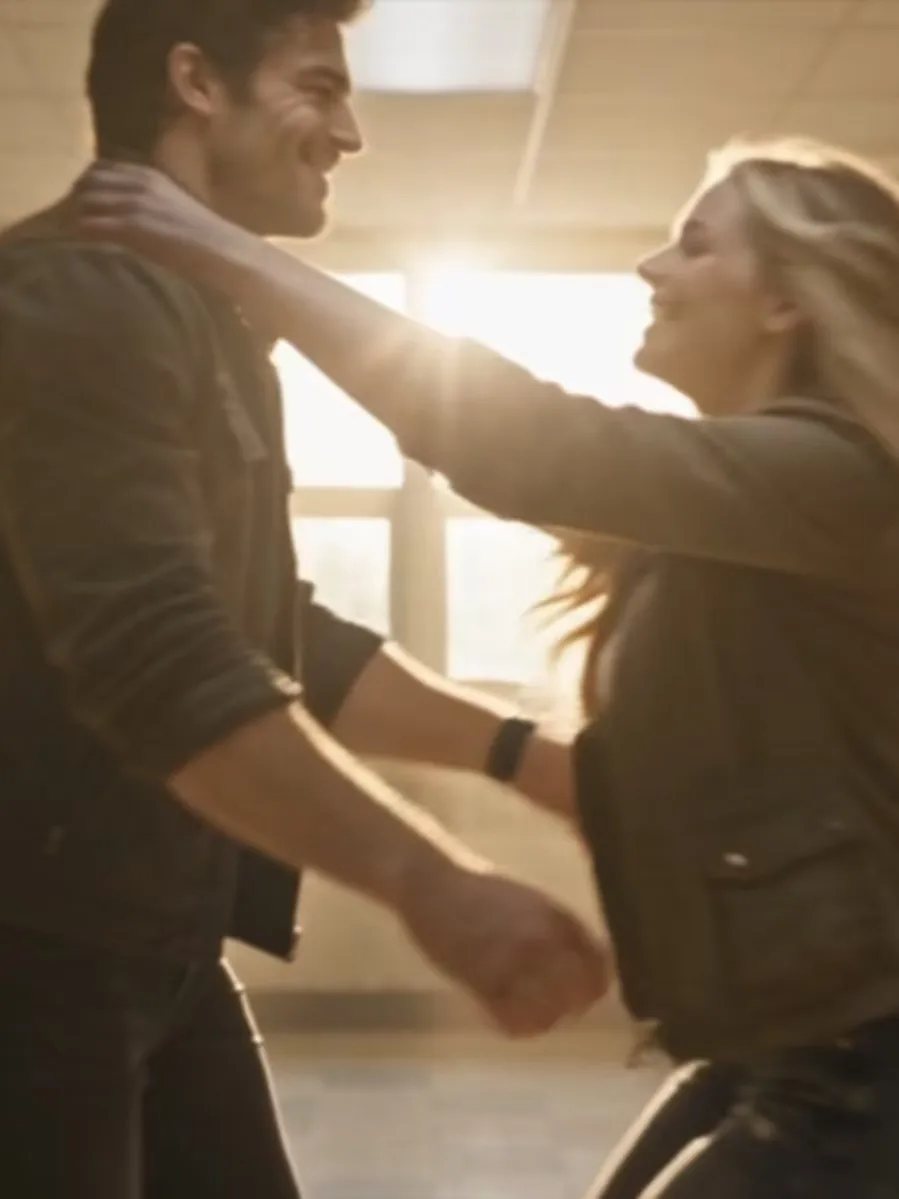
Concept illustration of the preset zombie reunion story, not a customer result.
To prepare an AI zombie love story for TikTok, Instagram Reels or YouTube Shorts, start with a vertical 9:16 export, watch the completed video, then add any soundtrack or captions in an editor or the publishing app. Do not assume your video generator will automatically supply the song, dialogue or text that another creator used.
This guide covers the editing and publishing stage after you have an AI-generated zombie reunion video.
Step 1: Choose a suitable video format
On AI Zombie Video, the available frames are:
- 9:16 portrait: the natural starting point for a vertical mobile feed.
- 16:9 landscape: a wider cinematic frame if you plan to show it horizontally or edit it into another layout.
The standard generated story is 15 seconds long. You can select 480P or 720P resolution. Standard consumes 10 credits and HD consumes 15. The two aspect ratios cost the same.
If you have already generated a widescreen clip, you can crop or pad it in a video editor, but cropping may cut off faces at the edges. Starting with portrait is simpler for a vertical post.
Step 2: Check the story before editing
Play the entire result. Verify that the survivor and infected character look recognizable, the survivor drops the weapon, and the forward motion connects to the warm-memory ending.
Those details are more important than placing a song over an obviously broken scene. If you notice inconsistent faces or a failed transition, review the troubleshooting guide.
Step 3: Add a soundtrack that supports the cut
A useful approach is to treat the story as two moods:
- Confrontation: quieter, tense or sparse sound.
- Memory: a warmer musical passage at the moment the threatening movement becomes an embrace.
You can add the music in CapCut or your platform's editor. A short fade or a musical change at the flashback can make the edit easier to follow, but there is no mandatory “official” song for the trend.
Use audio you have the rights to share. Music-library availability and commercial-use terms depend on the platform, track and account type.
Important: Our generator does not guarantee sound, music, effects or dialogue. Music is a separate editing decision unless it happens to be present in your exported result.
Step 4: Add a short on-screen caption
Long sentences obscure faces in a 15-second clip. Put text away from important facial expressions and platform controls.
Examples you can adapt:
- “I'd still know you.”
- “Before everything changed.”
- “Even the end couldn't change us.”
- “One last memory.”
Make sure the caption is visually legible against both the dark apocalypse section and the bright memory. A subtle outline or background can help.
For more contextual ideas, see zombie hug captions and story concepts.
Step 5: Disclose realistic AI-generated content
Follow the posting platform's current labeling rules. TikTok's official AI-generated content guidance says creators must label realistic AI-generated images, audio and video. Other platforms have their own disclosure controls and policies.
When posting a fictional scene with recognizable real people, ensure that you have their permission. Make it clear that the footage is AI-generated, not a real incident or documentary recording.
Step 6: Export and review on a phone
After adding captions and music:
- Confirm the 9:16 frame still includes both faces.
- Avoid cutting off the first moment of recognition.
- Check that the final embrace is visible long enough to understand.
- Listen for abrupt audio cuts.
- Read the caption at ordinary phone size, not just on a desktop editing canvas.
If you're starting from photographs rather than an existing video, first follow the two-photo zombie trend guide. If you want more editing control, see CapCut versus a dedicated generator.
In short: generate the story, inspect the motion, then treat music, captions and platform labels as a separate publishing workflow.