
How to Make the AI Zombie Trend Video From Two Photos
Make the zombie love story video with two portraits. Compare a ready-made generator with a DIY workflow, then choose the right format.
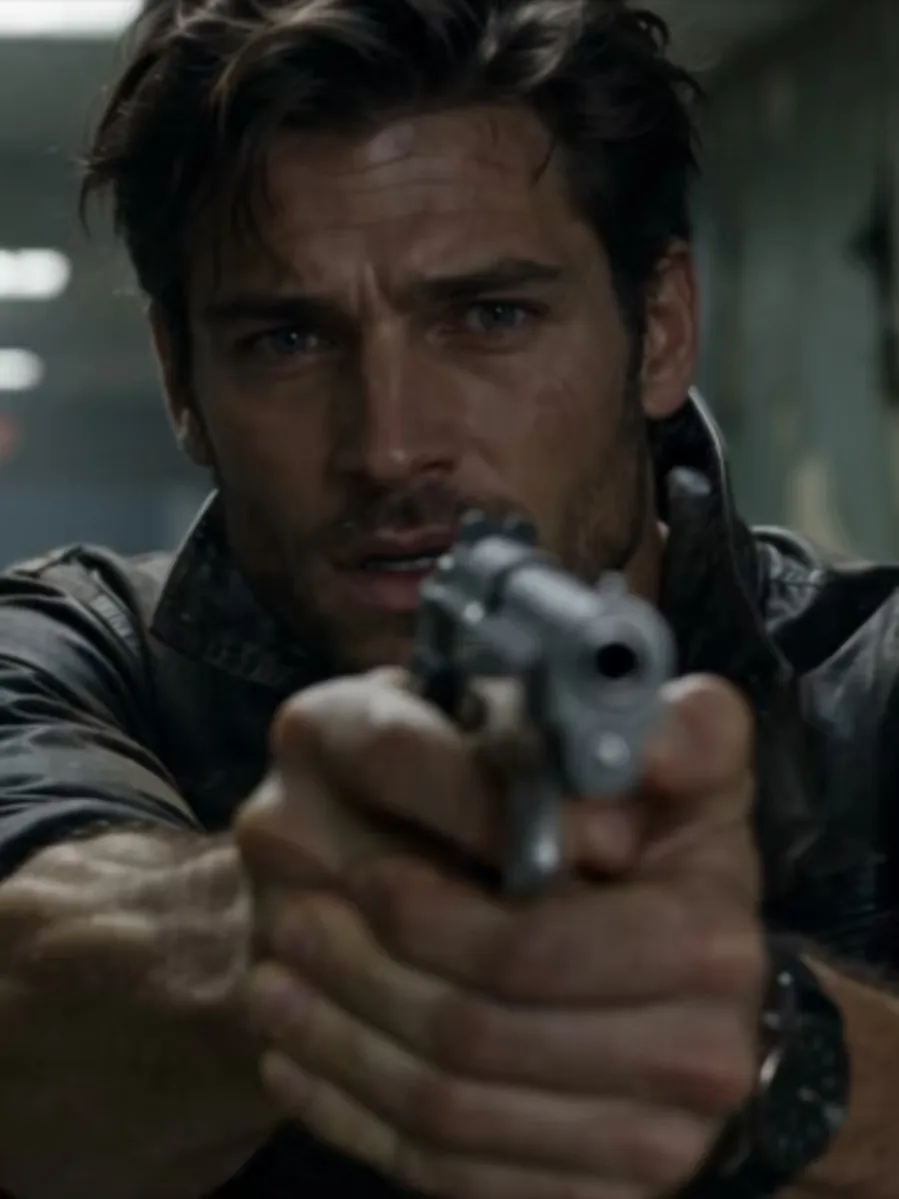
Concept illustration of the preset zombie reunion story, not a customer result.
The simplest way to make the AI zombie trend video is to start with two clear photos: one of the survivor and one of the person who turns into a zombie. A dedicated generator can turn them into a short reunion story without requiring you to build the shots yourself. If you want to direct every action or add your own soundtrack, a general AI video tool and an editor give you more control.
This guide is for people who saw the zombie hug or zombie love story on TikTok or Reels and want to put themselves and someone they know into the story.
What does the finished video show?
The version offered by AI Zombie Video lasts 15 seconds. The survivor raises a weapon, realizes the infected character is someone familiar, and drops the weapon. The infected character charges; just before impact, the motion changes into a warm embrace in a memory from before the disaster.
The emotional point is the contrast between fear in the present and affection in the past. This is different from merely adding zombie makeup to a selfie.
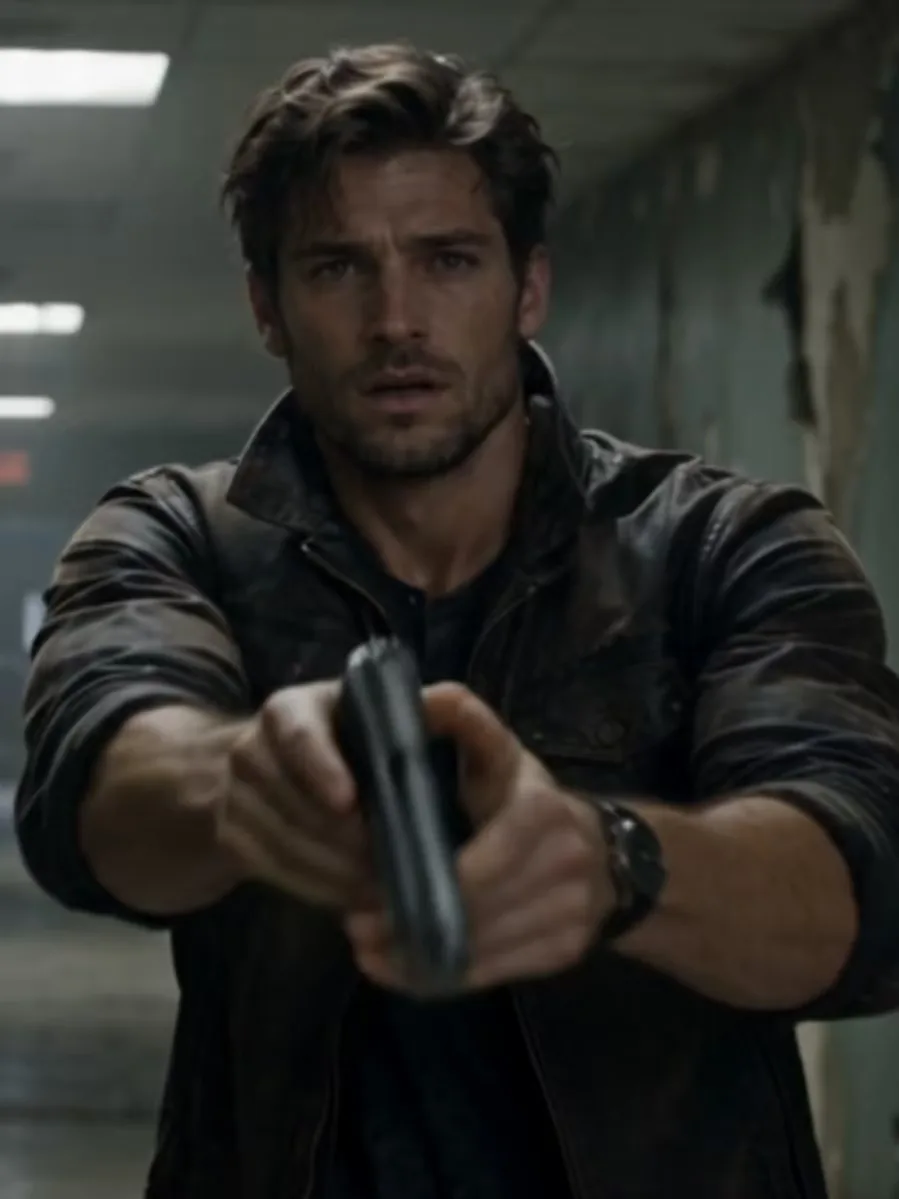
Story illustration, not a frame from a customer-generated video.
Method 1: Use a two-photo zombie generator
- Open the AI Zombie Video generator. You can prepare the photos before creating an account.
- Upload Photo 1: Survivor. This is the character who recognizes the other person and lowers the weapon.
- Upload Photo 2: Infected. This person—or a supported pet reference—is the character who charges and appears healthy in the memory.
- Optionally describe the apocalypse setting, such as an abandoned park at dusk. This changes the location or mood, not the prewritten plot.
- Pick 9:16 for a vertical video or 16:9 for widescreen. Choose Standard 480P or HD 720P.
- Continue to sign in, use or purchase credits, and submit the generation. Completed videos are accessed from My Videos.
This is a paid workflow. One Standard video consumes 10 credits; HD consumes 15. The smallest one-time pack is $6.90 for 10 credits. There is no free video generation or automatic soundtrack guarantee. See the complete pricing details.
Method 2: Make the scenes yourself
Use a general-purpose image-to-video generator that supports reference images and enough shot control. Instead of asking it to do the entire story in one vague sentence, define the shots:
- Establish the survivor and infected character with distinct faces and clothes.
- Generate a cold, tense standoff and the survivor's recognition.
- Show the weapon dropping and a clear forward movement from the infected character.
- Create a second, warmer scene of the same pair moving into an embrace.
- Match the direction of movement across both clips and join them in an editor.
For a ready-to-adapt description, see our zombie hug transition prompt. The DIY approach is better if you need a different ending, another prop or precise editing. It also creates more opportunities for visual inconsistency between clips.
How to choose your photos
Pick one adult subject per image, ideally with a well-lit, unobstructed face. Use a straightforward portrait instead of a heavily filtered or crowded group photo. On this site, images must be JPG, PNG or WebP, no more than 8 MB each, and you need permission to use them. All people shown must be adults.
The second photo determines who becomes infected, not who holds the weapon. For detailed examples, read which photos work best.
What should you do after generating?
Watch the entire video before posting. Check both identities, the moment the weapon falls and the transition into the memory. A video can look convincing in a thumbnail while containing awkward hands or a mismatched face in motion.
If the result works, download it and add music or captions in your editor. Our short-form posting guide covers that separate step. Sound is not guaranteed by this generator.
Bottom line: For the specific two-photo, 15-second reunion, the ready-made generator is the shorter path. For a different story, use a general AI video model and edit the scenes yourself.
Further context: AI zombie love story trend explained; CapCut's AI zombie template collection.